Create and View Travel Plan
Create a Travel Plan
To create a travel plan, you can follow the steps below:
- Log in to the Corporate Dashboard, select Travel Plan, then select the Your Travel Plan menu
- Click "Create travel plan"
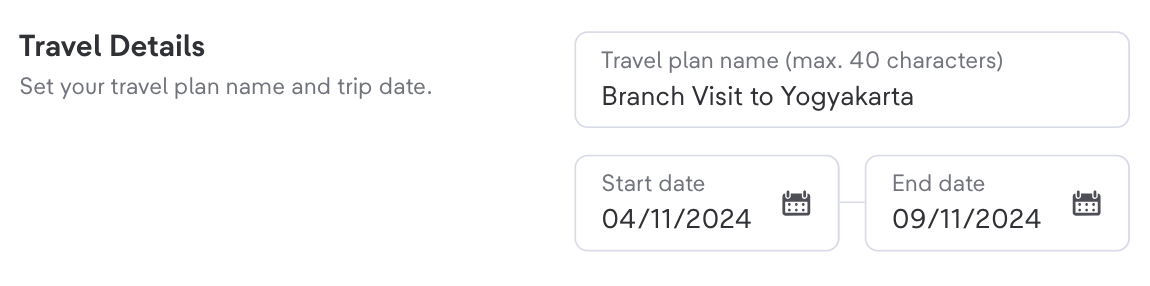
- Fill in Travel Details
- Create a Travel Plan Name with a Maximum of 40 characters
- Select Start Date
- Select End Date
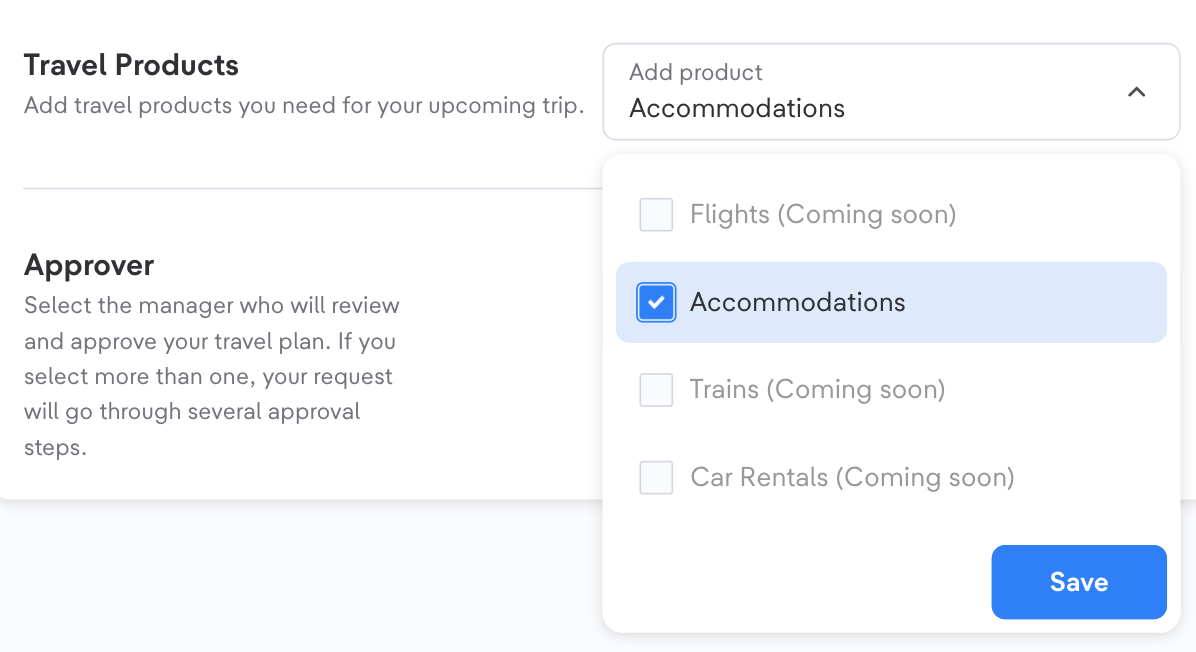
- Choose the Products you want to add to the Travel Plan:
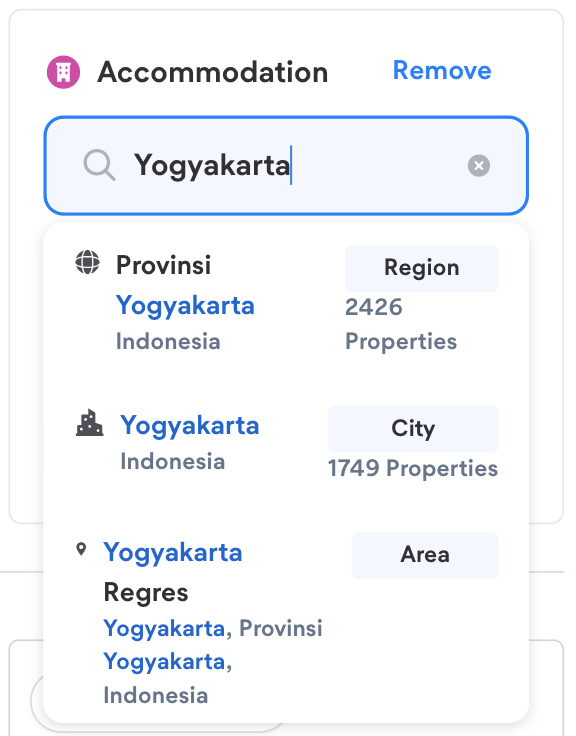
How to Create Product Configurations
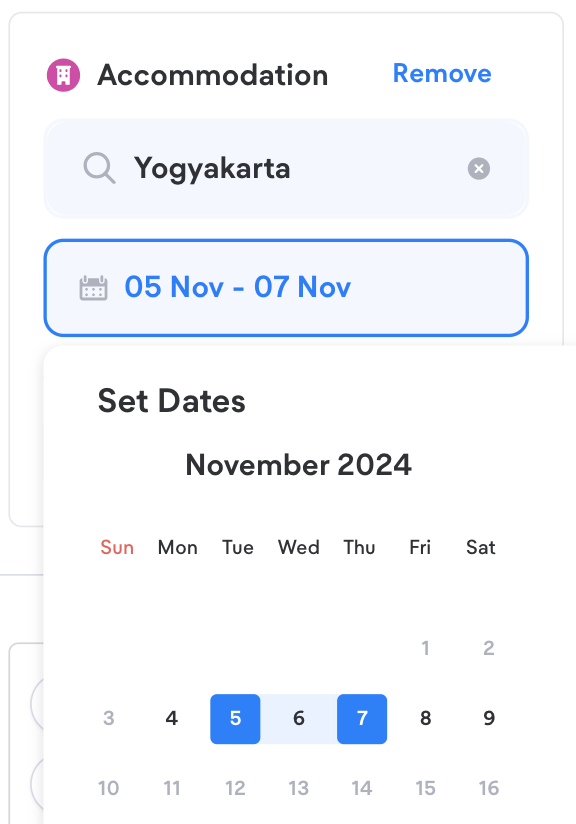
- Set product details:
- City
- Choose Check-In and Check-Out Date
Please remind, Check-In Date and Check-Out Date cannot be earlier or later than the Start Date and End Date of the related Travel Plan.
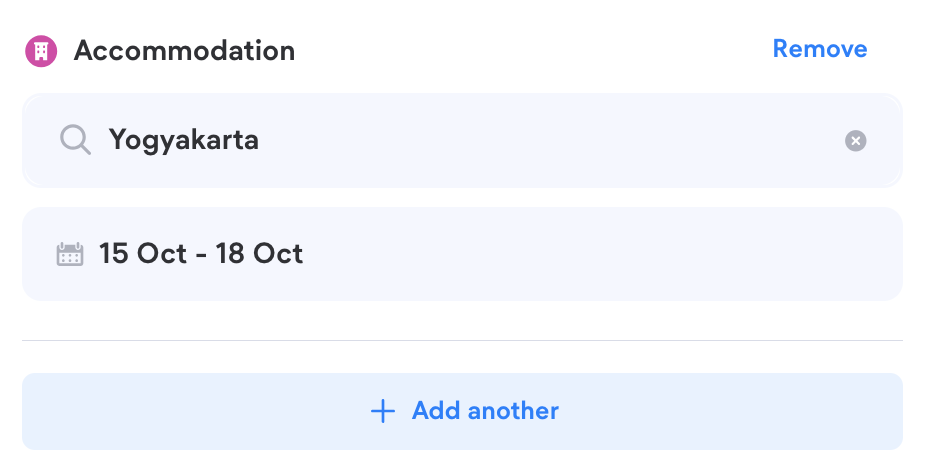
2. Click "Add another" to add another accommodation product to the same Travel Plan. You can add up to a maximum of 5 products.
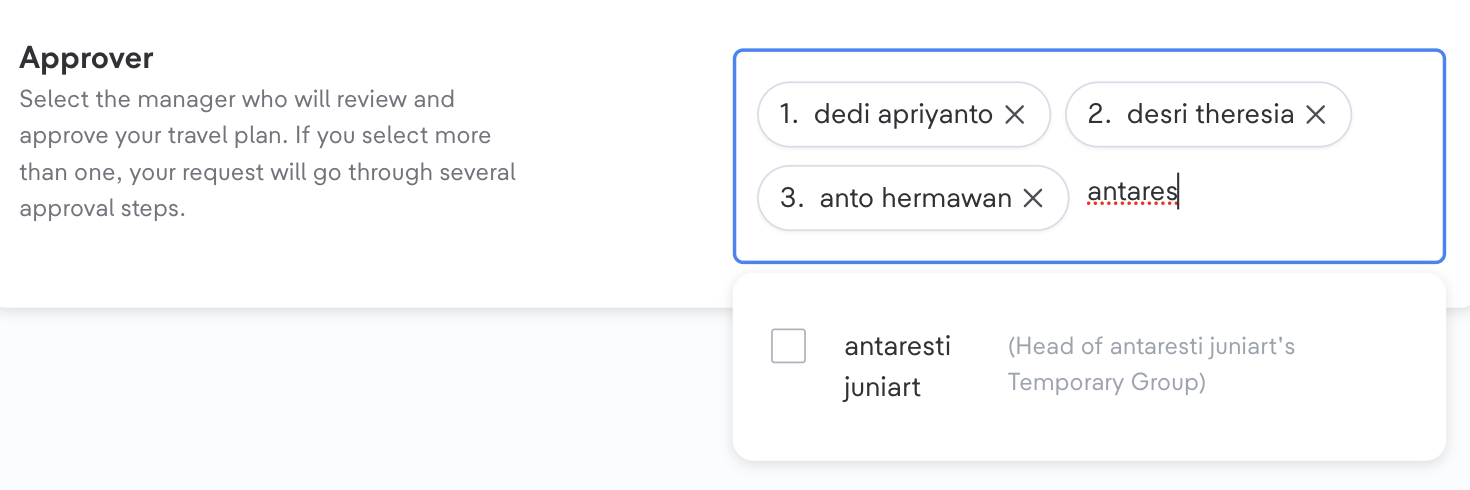
Assign List of Approvers (Multi-layer Approval)
- Klik dropdown “Select approver”
- Pilih Approver dengan urutan yang sesuai dengan urutan persetujuan travel plan yang akan diajukan:
- Approvers yang dapat dipilih terdiri dari:
- Administrator dari Perusahaan
- Head/Approver dari setiap Grup/Departemen
- List Approver dapat berjumlah maksimal 5 orang
- Approvers yang dapat dipilih terdiri dari:
Pencarian Approver dapat dilakukan berdasarkan nama
3. Click “Request approval” to submit the travel plan for approval.
4. Click “Submit request” to confirm the submission and Click “Check again” to review the travel plan configuration
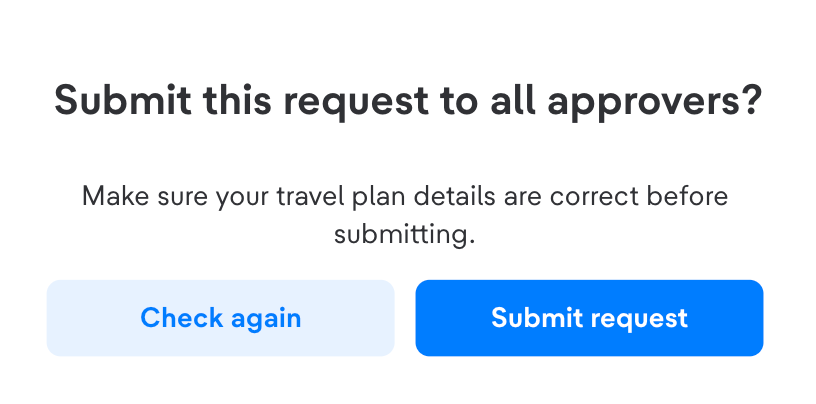
Note: An approval request email will be sent in sequence, starting with the first approver, then to the next approver (if applicable) once the previous one has approved.
How to See Personal Travel Plan and Request
- Enter the Corporate Dashboard, select Travel Plan and then enter the Your Travel Plan menu
- Click "Open" on one of the Travel Plans that have been created
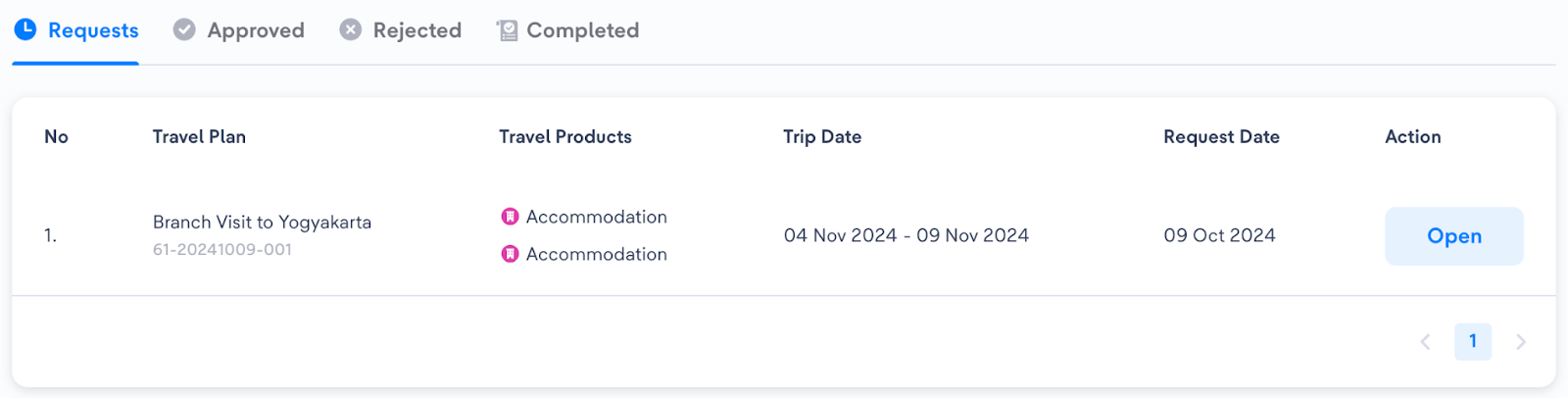
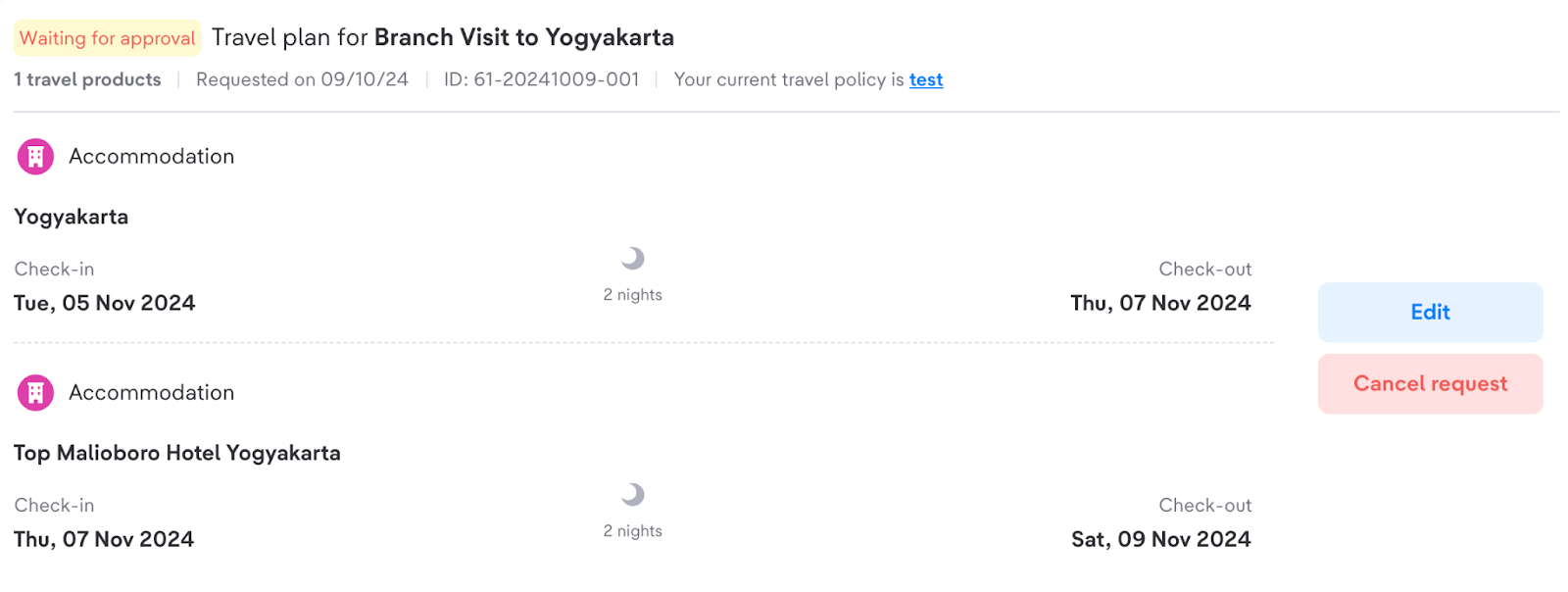
The tab will divide the Travel Plan into four categories, as follows:
Requests → Waiting for approval
- Approved → Approved
- Rejected → Rejected
- Completed → Completed
Travel status available on the dashboard:
- Waiting for Approval
- Approved
- Completed
- Rejected
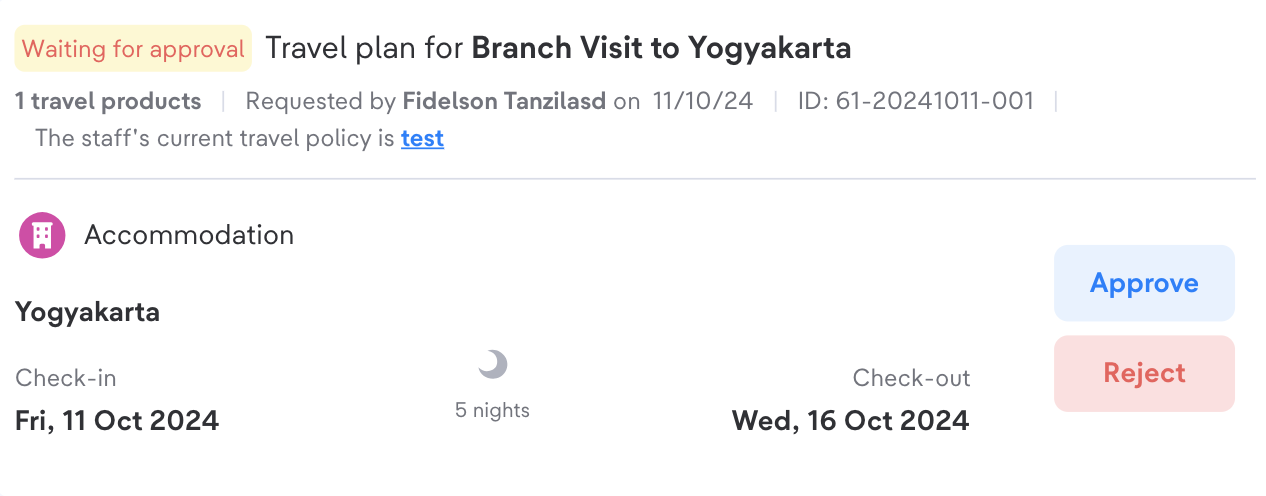
For Approvers, if you want to see the travel plan request, on the dashboard you can select the "Travel Plan Request" menu and on the menu there will be a marker that there is a Travel Plan that must be confirmed.
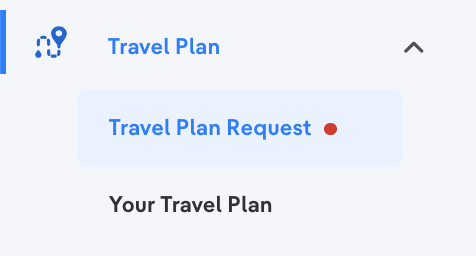
Here is an example if there is a Travel Plan that needs to be approved on one of the travel plans created.