Approve and Reject Travel Plan
How to Access Travel Plan Request Via Email
- Open the email with the subject “Travel request: {Request Name} for {Start Date Travel Plan} - {End Date Travel Plan}”.
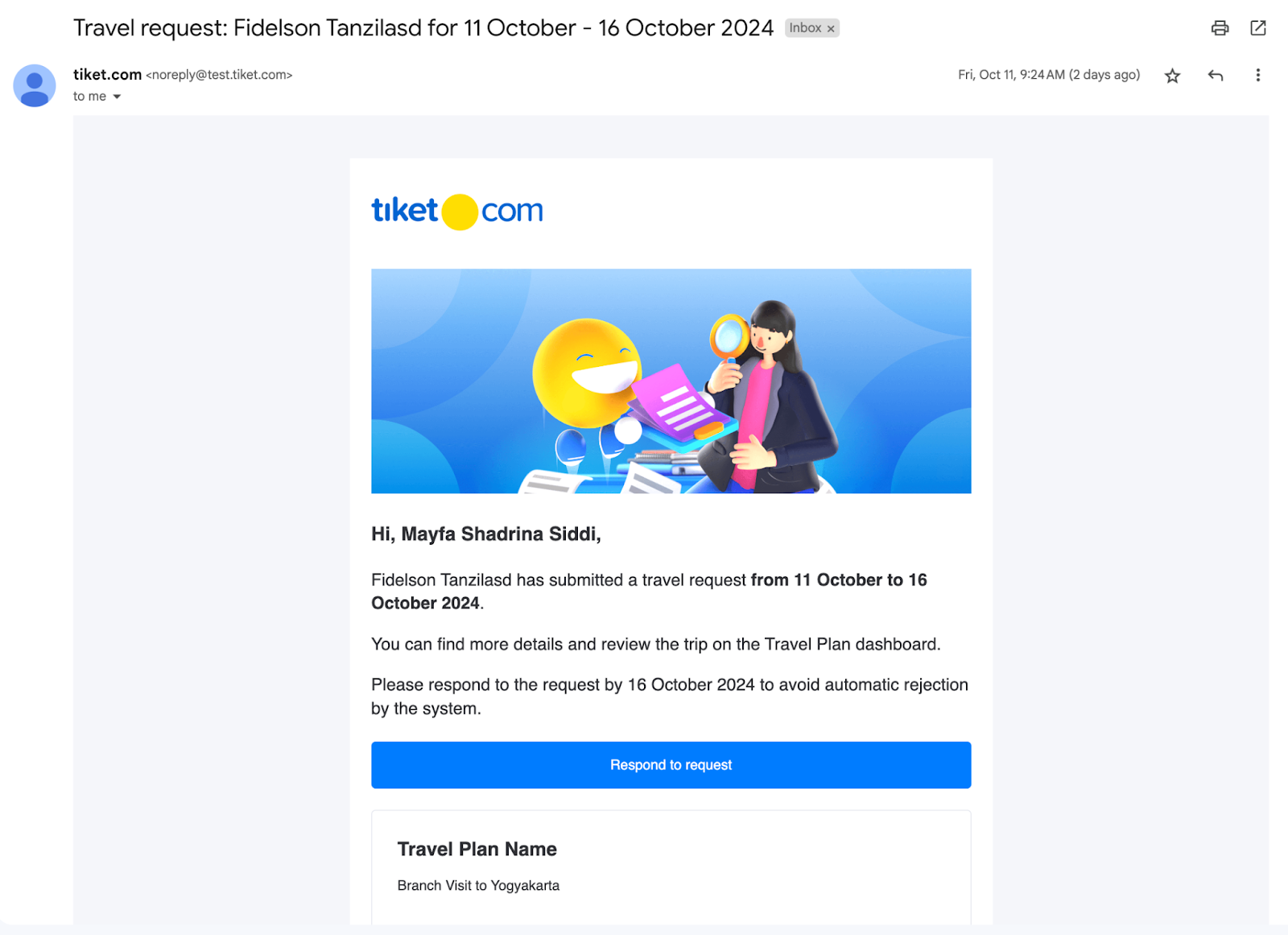
- Click “Respond to request” to be directed to the Travel Plan Request page.
Note: Approval can only be given until the expiration date of the Travel Plan.
Accepting Travel Plan
-
Enter the Corporate Dashboard, select Travel Plan and then enter the Your Travel Plan menu.
- Click “Open” on one of the submitted travel plans.
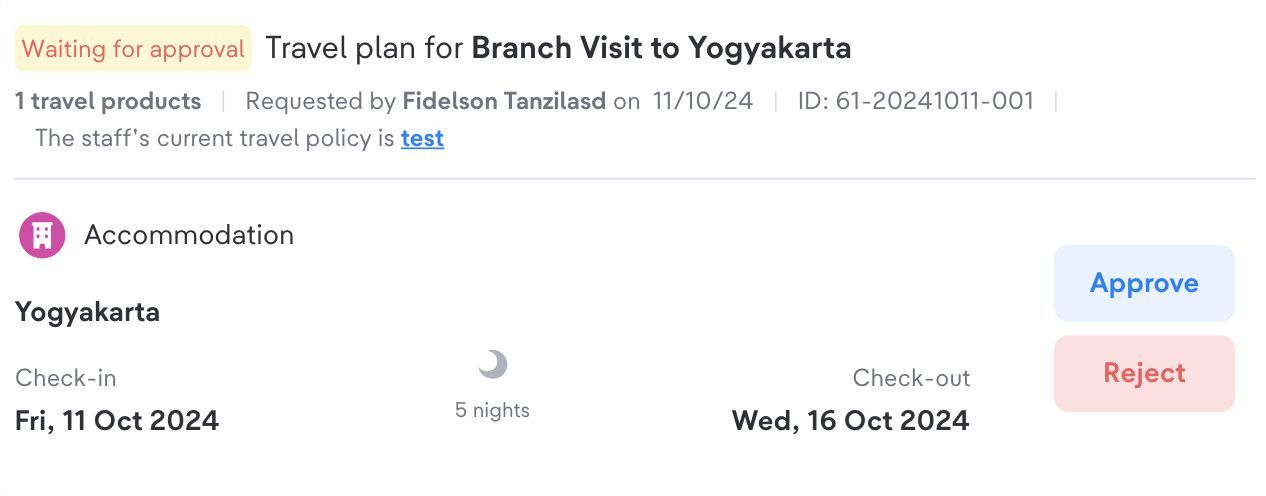
- Click “Approve” to approve the travel plan*.
Click “Approve request” to confirm the approval.
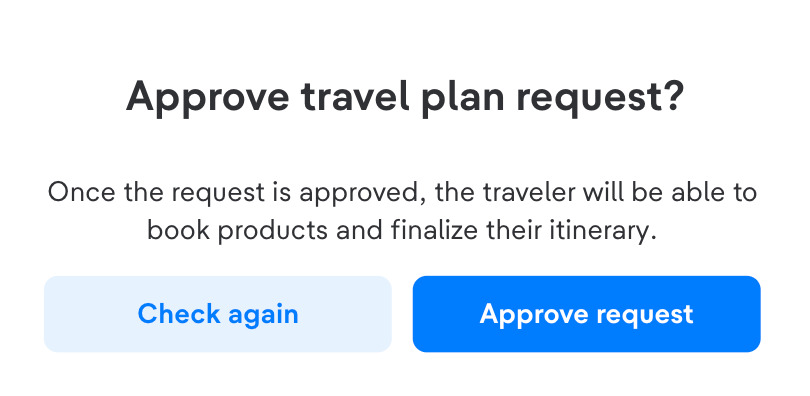
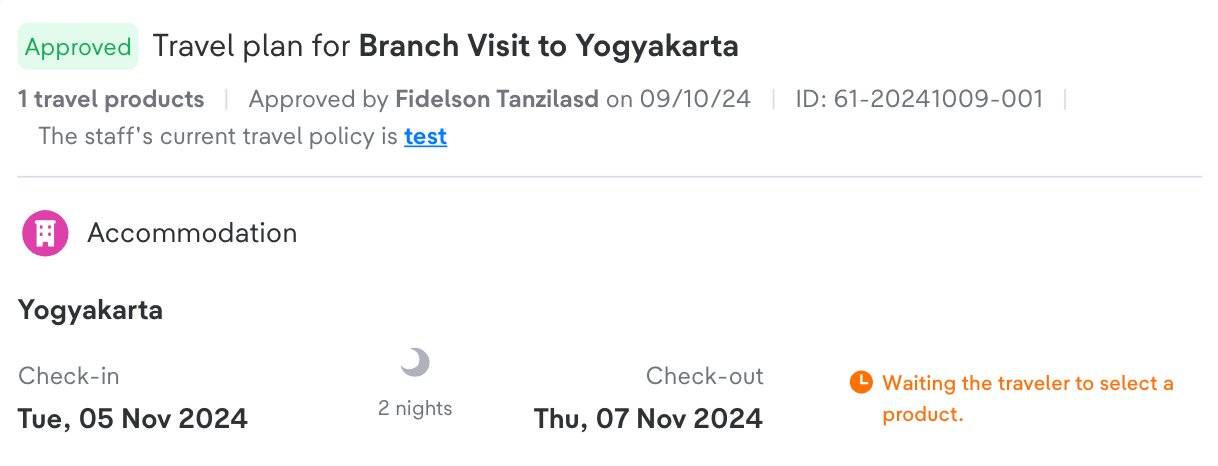
Click “Check again” to review the travel plan configuration again.
Rejecting Travel Plan
- Enter the Corporate Dashboard, select Travel Plan and then enter the Your Travel Plan menu.
- Click “Open” on one of the submitted travel plans.
- Click “Reject” to delete the travel plan*.
- Fill in the Rejection reason to provide a reason for rejecting the travel plan then Click “Reject request” to confirm the rejection.
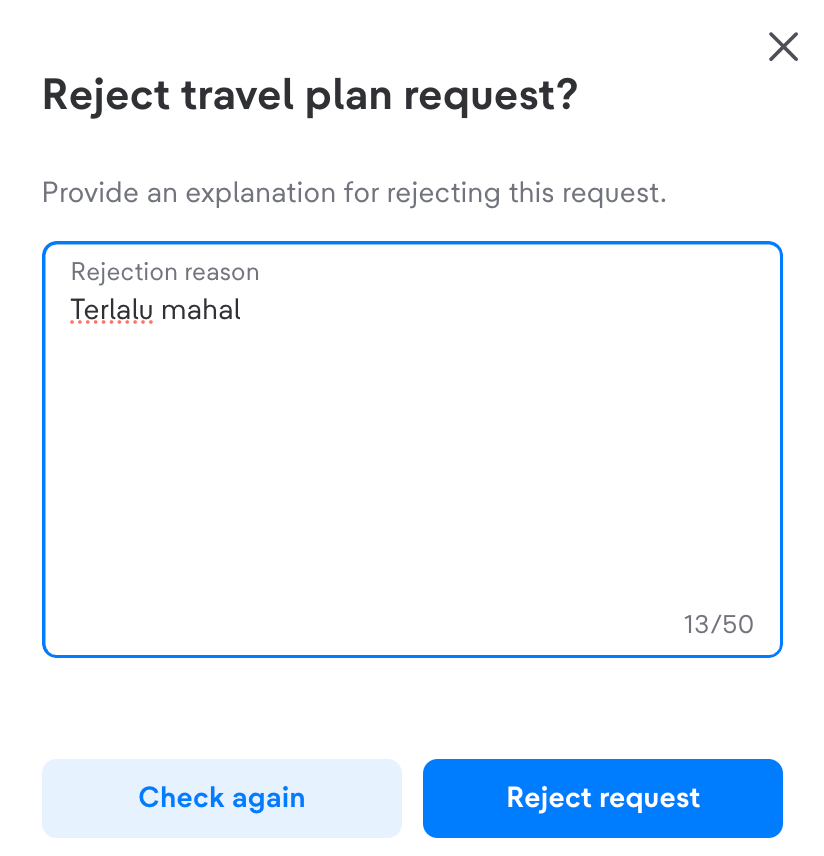
Click “Check again” to review the travel plan configuration again.
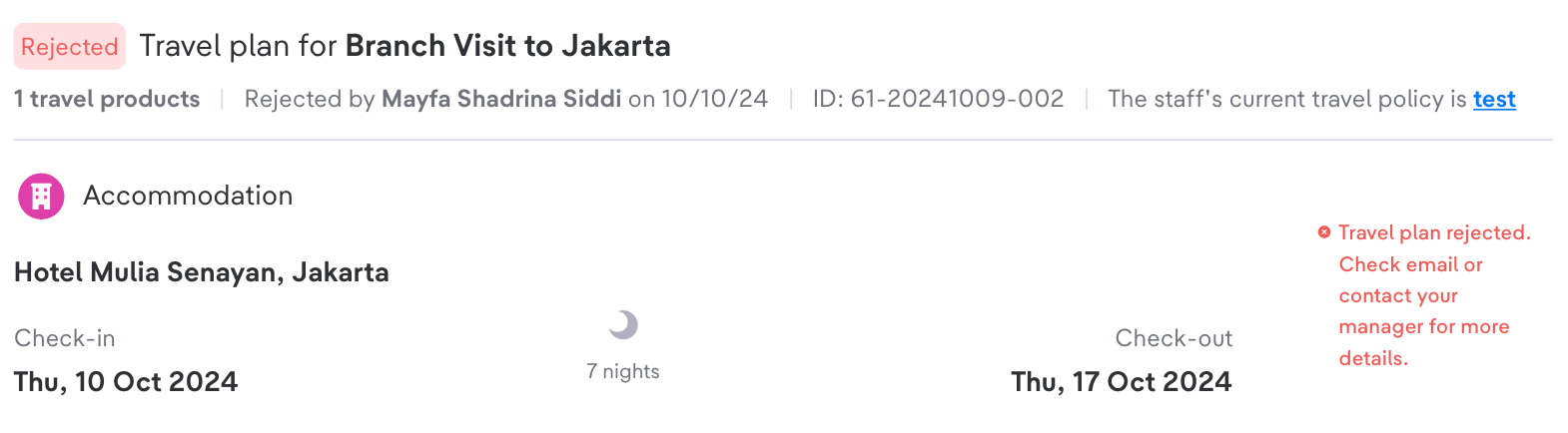
After clicking reject request, the status will change to Rejected and the reason for the rejection can be seen in the email received by the Traveler.